How to add Alfie in the app and control the automatic gates remotely
Step by Step
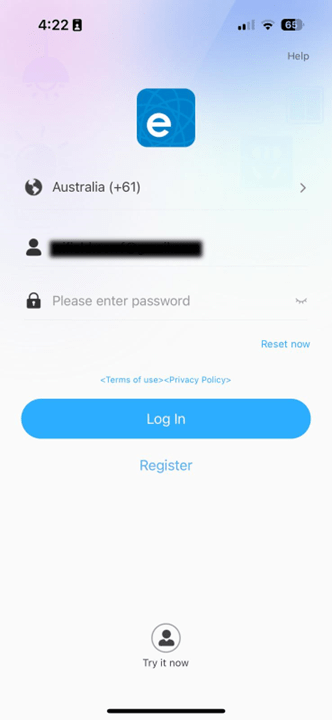
Step 1: Access the eWeLink app and access your account
Step 2: Click in the plus and choose “Add Device”

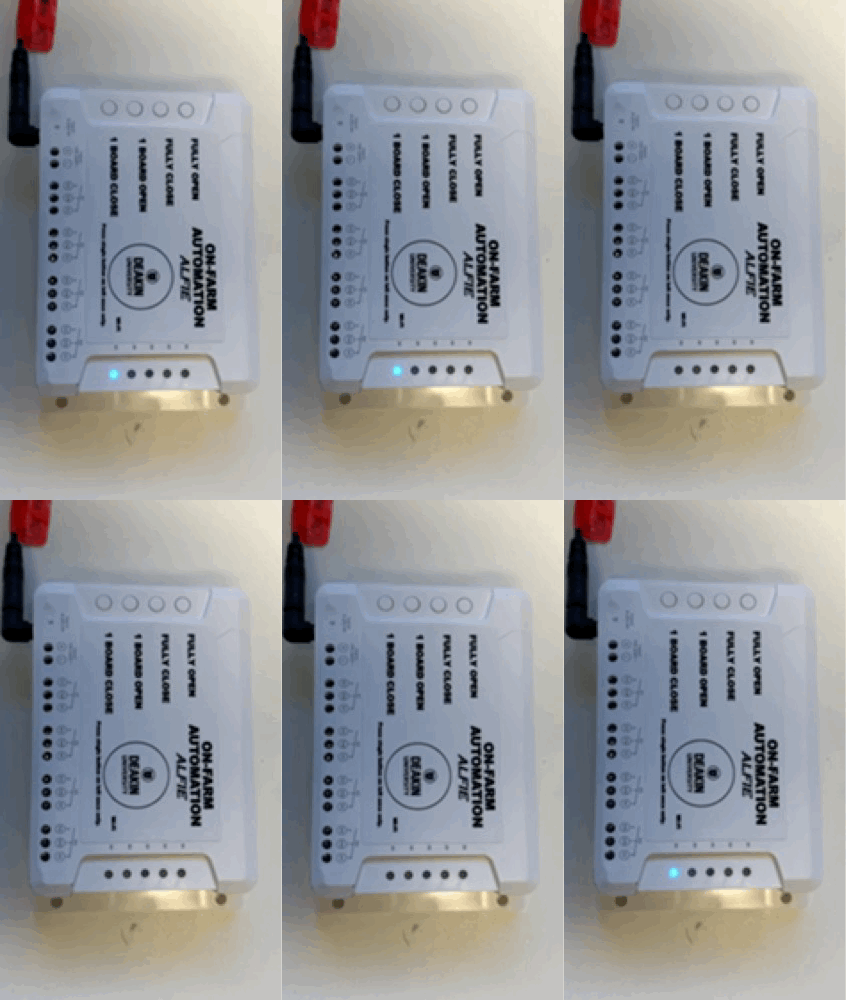
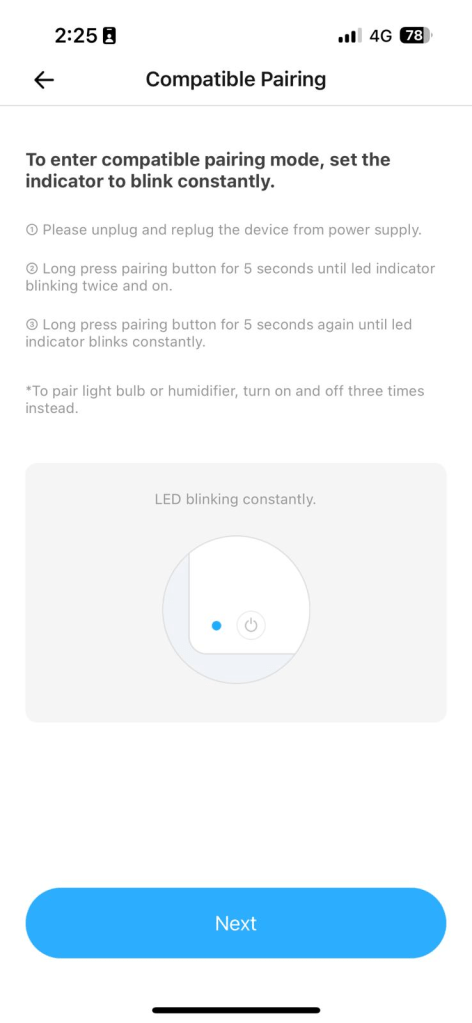
Step 3: In the Compatible Pairing mode it indicates how to put the Alfie device in sync mode. To do that, press any button and hold up to the blue lead (at bottom) starts to blink continuously as showed below.
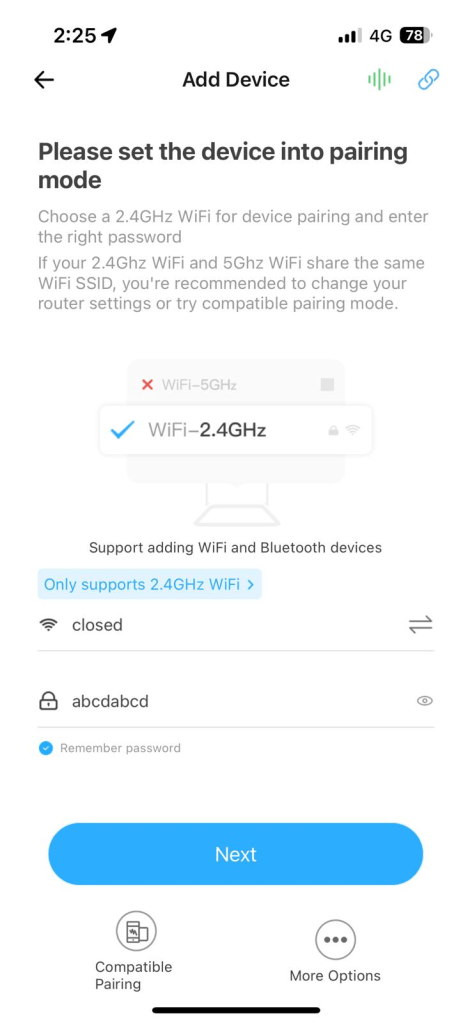
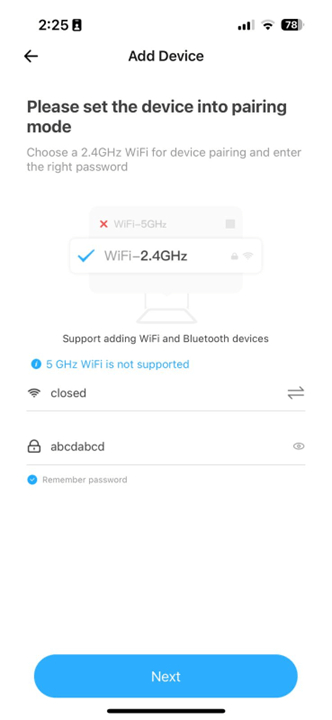
Step 4: Choose the network where the device must connect. Your smartphone should be in the same Wi-Fi network as well. Select Compatible Pairing (button below next). You will receive instructions about how to change Alfie to configuration mode
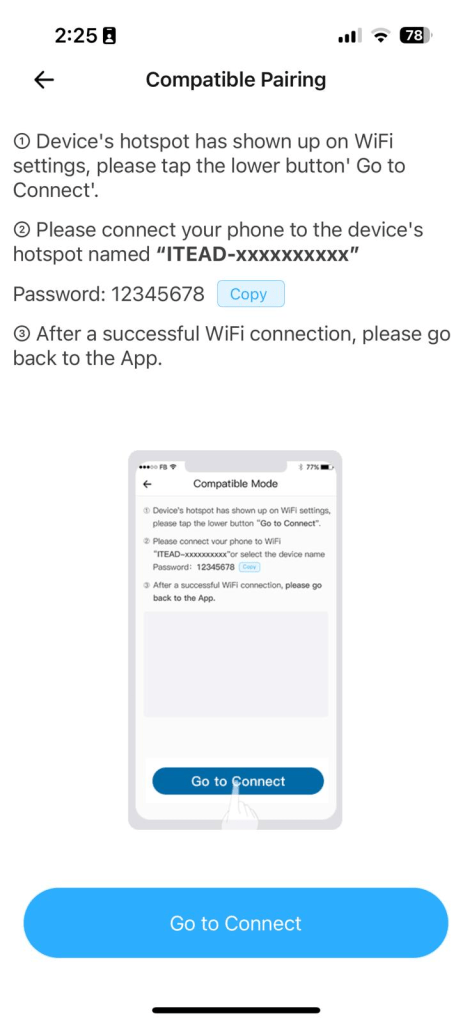
Step 5: If device is in sync mode, it will be a hotspot and the network “ITEAD-xxxxxxxxx”. To access it click in “Go to Connect”
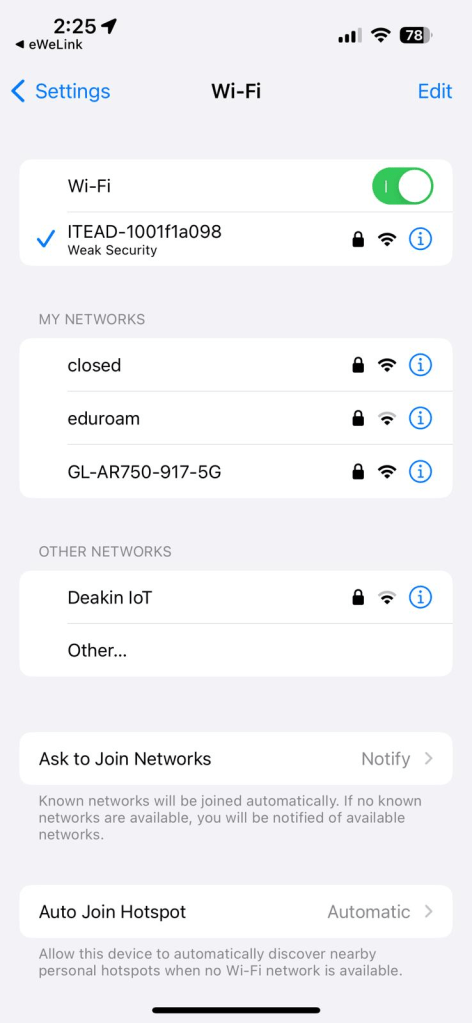
Step 6: In the Wi-Fi settings, select the Alfie network. In this example, you should select ITEAD-1001f1a098. Back to eWeLink app (below the clock).

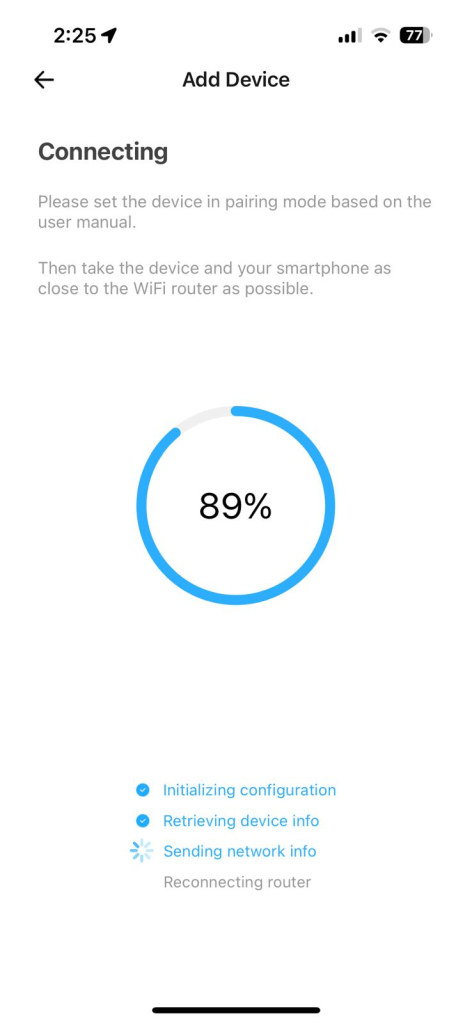
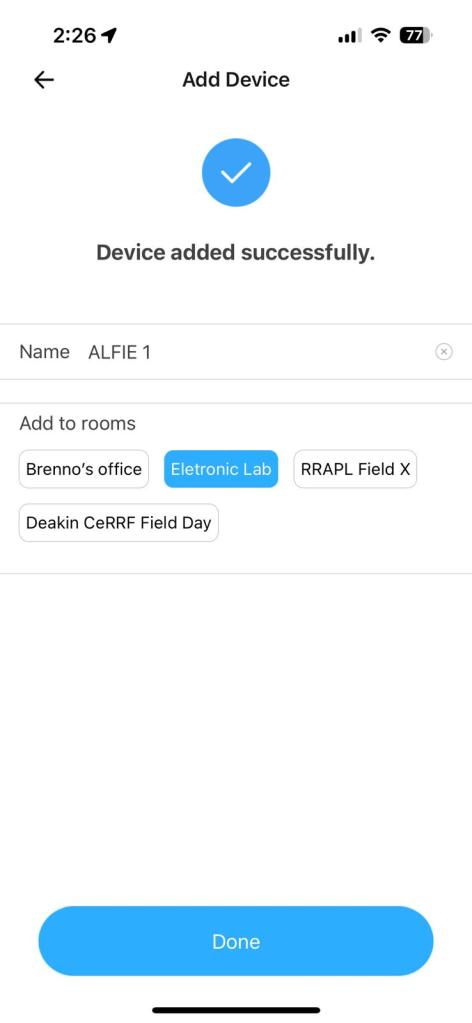
Step 7: The device will synchronize with platform. This process will configure the Wi-Fi settings in the device. Once connected, you will be able to put a name in your device. In this example the devices name is ALFIE 1. You can select the room (or area of the farm you want associate the device).
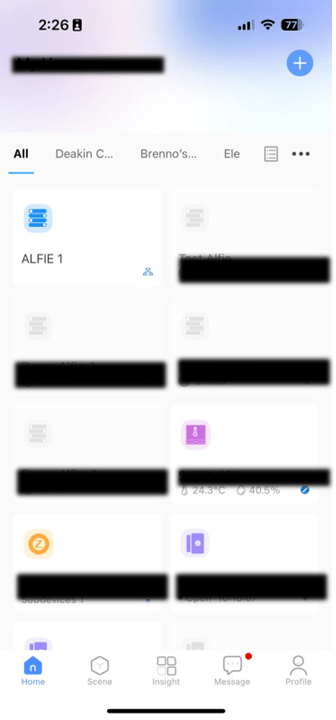
Step 8: Once the device is associated with your account, you will see the device in your account (in Blue), and the blue led device will be solid.
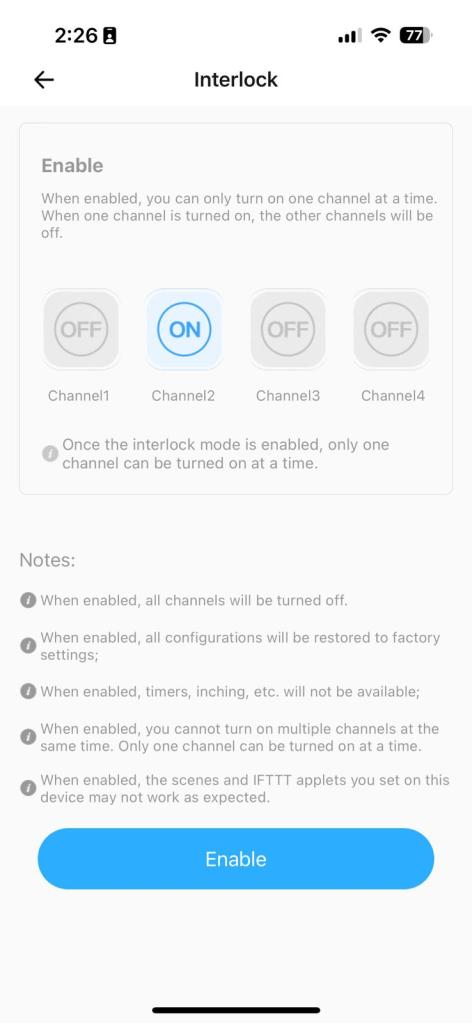
Alfie will use two buttons to open and close the gate. In normal operation just one button should be activated at once. You can configure a feature called “interlock” to have just one command at once. To do that, select Device Settings and select Interlock.
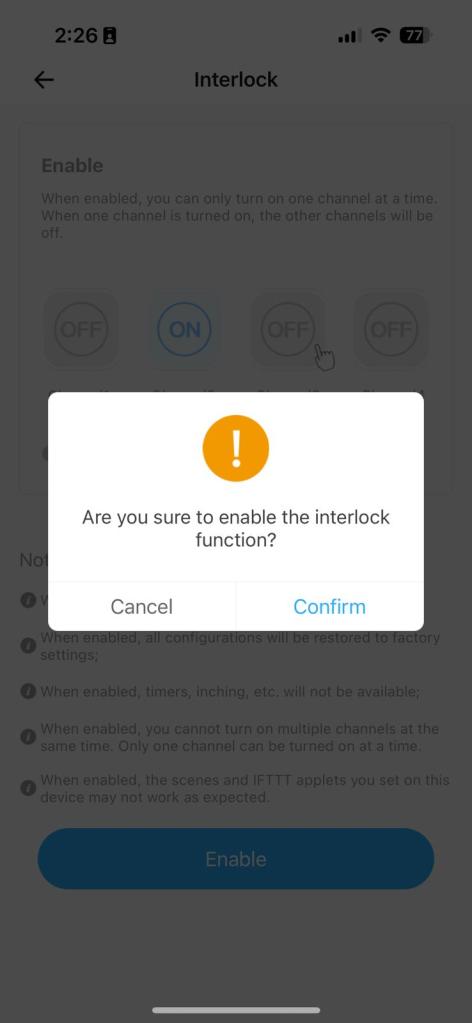
Step 1: Click in Enable. Confirm the interlock activation. Once done only one button (or channel) can be activated.

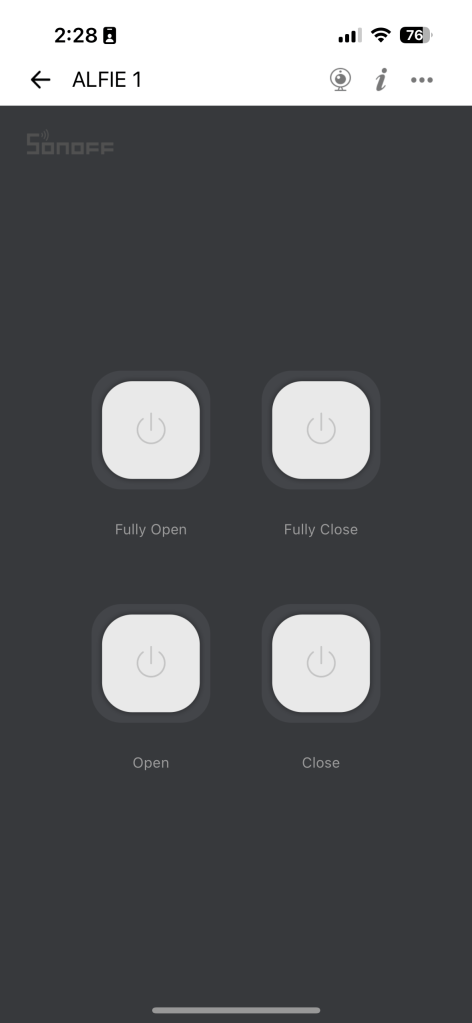
Step 2: Change the name of the buttons (or channels) to easily identify how to open and close the gate. In Device Settings, click in Name. The name of all channels will be presented as below.
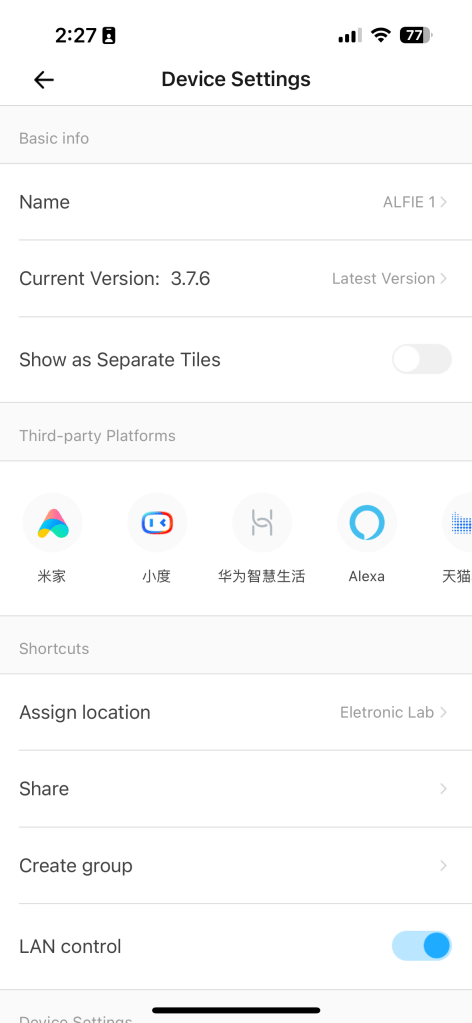
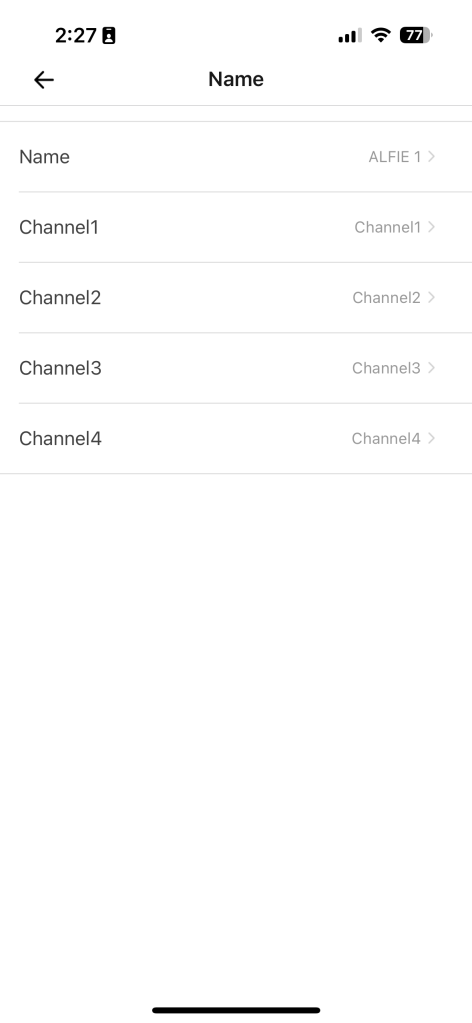
Step 3: Following the connections diagrams of the how to build an Alfie tutorial, you are using the Channel 3 to open the gate and Channel 4 to close it. Change the name of those channels according to the picture below.
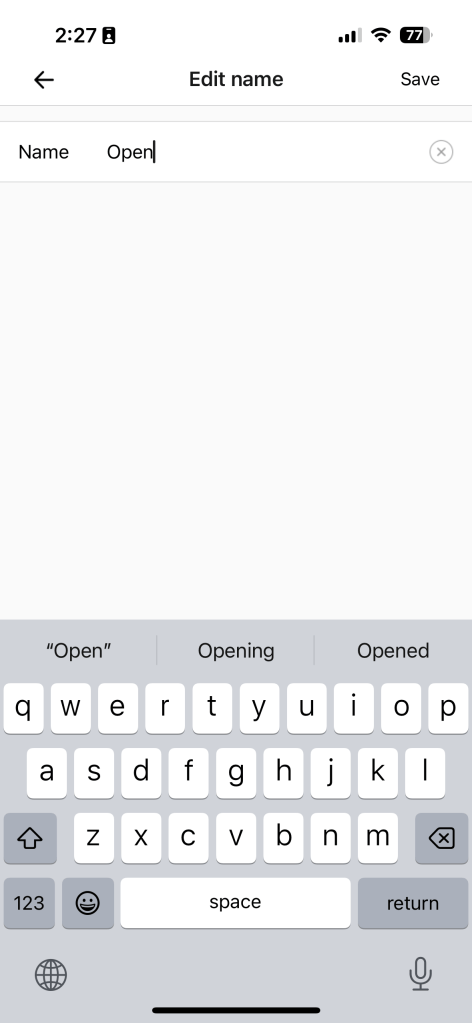
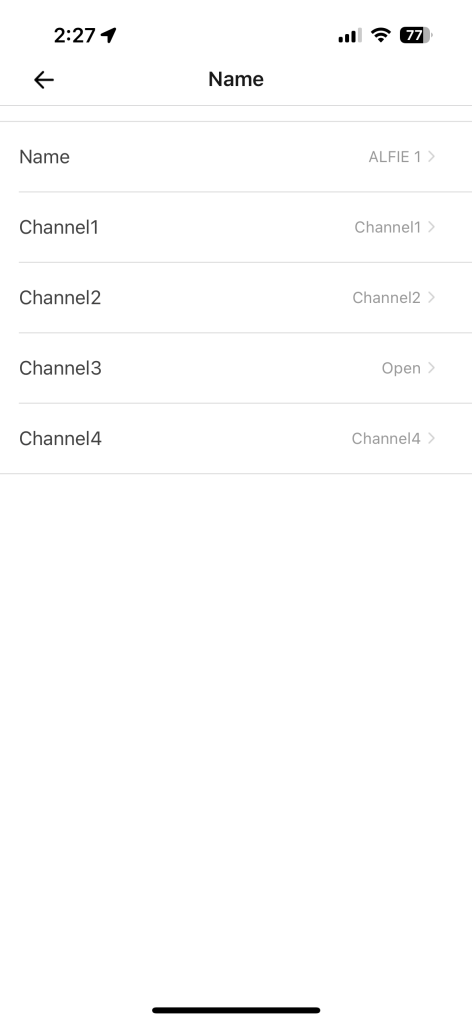
Step 4: You can change any name. An example is snipped below
 Irrigation Automation
Leave a comment