See how to create irrigation automation scenes in just few steps.
See in action
Step by Step
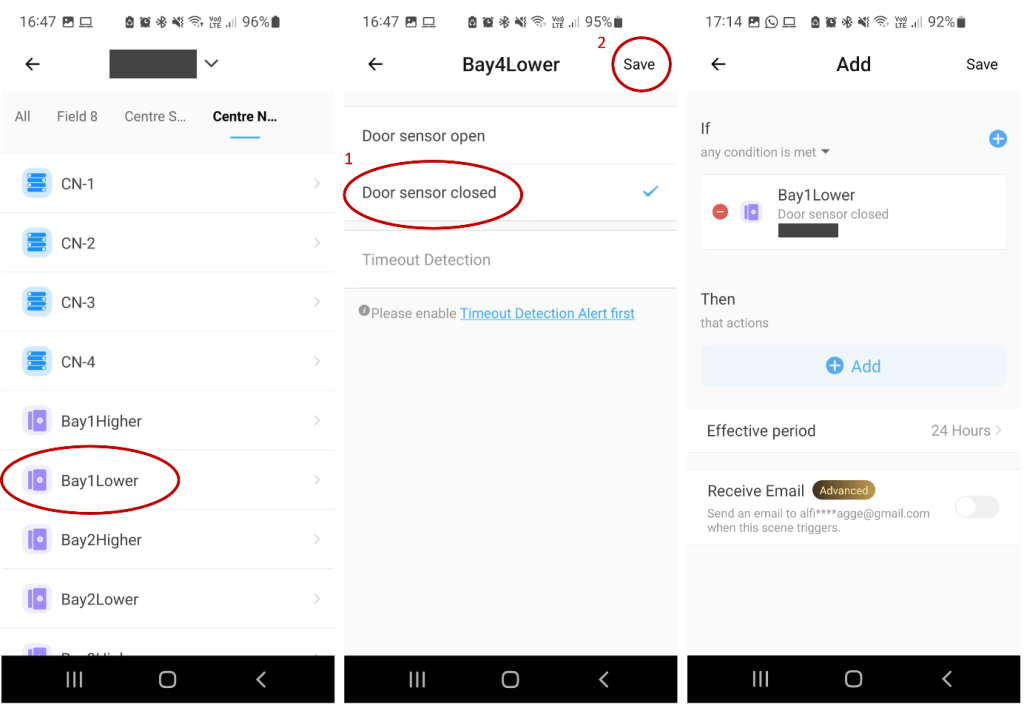
Access ewelink app (administrator account). Click on the ‘Scene’ tab (bottom of the screen), select the option ‘Auto’ (top of the screen) and click on the cross symbol on the top right corner to configure the scene. Indicate the trigger of the scene by clicking on the ‘Add’ button and on the ‘Smart Device’ option.

Select the field where the sensor is located and specify the sensor you want to be used as the trigger. Click on the sensor of interest. In this example, Bay1Lower will be used. Then click on the action of the sensor that triggers the scene, that is, ‘Door sensor closed’, and save the settings.
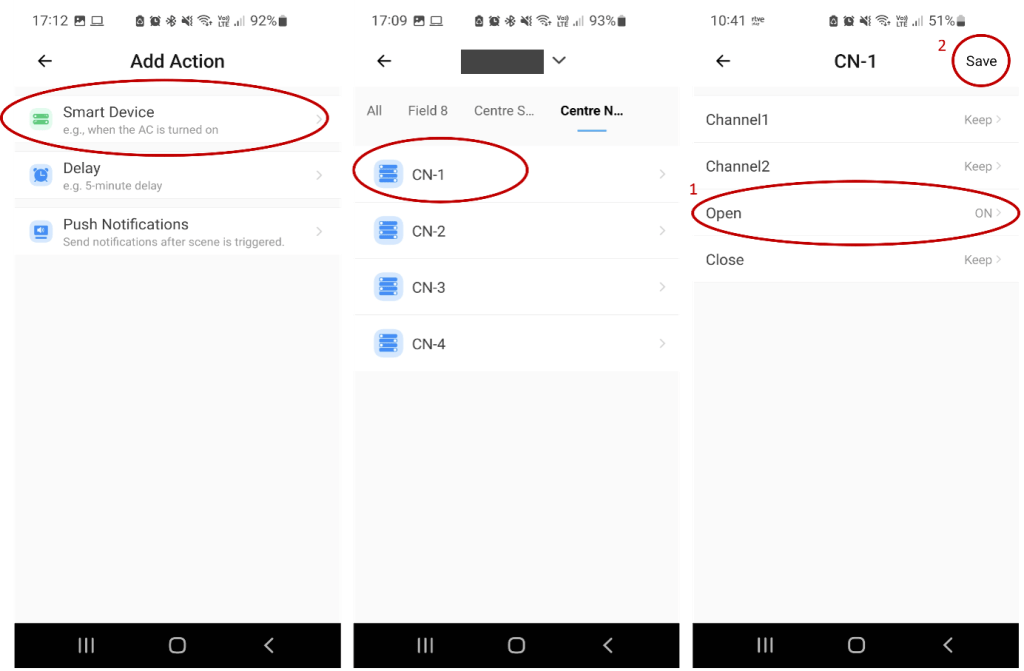
Set up the actions to occur by clicking on the ‘Add’ button. Select the ‘smart Device’ option. Select the Wi-Fi smart switch that controls the inlet in the bay of interest (CN-1 in this example). Click on ‘open’ and then on ‘ON’. Make sure to save the settings for the actions to be in effect.
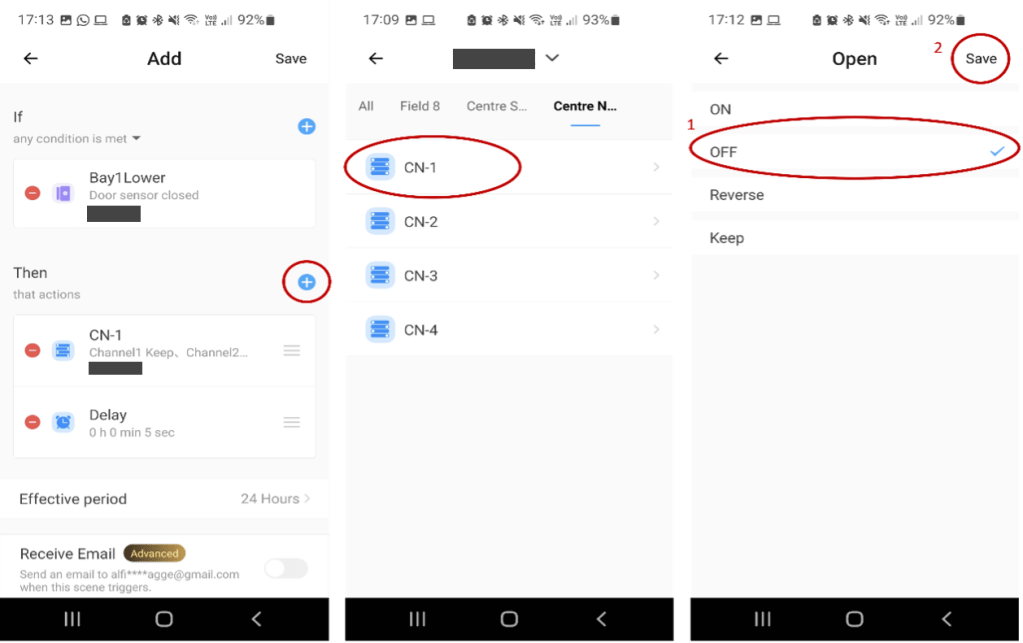
With these settings, the gate will open completely when the action is triggered. To partially open the gate, another action must be added for the gate to stop opening at a specified period of time using the ‘Delay’ option. Click on the ‘+’ symbol, then choose ‘Delay’ and specify the time you want the gate to remain in opening mode. In this example, this period will be 5 seconds. Then save the settings. Click the ‘Add’ button again to add the action to occur after the specified period. Select ‘Smart Device’ and choose the Wi-Fi switch of interest (CN1 in the example). Clock on ‘Open’ and select ‘OFF’. Then save the settings. When the scene is triggered, the gate will open and stop opening after 5 seconds.

Once the scene is created. Save the the scene configuration for this to start being in effect and create another scene for the gate to fully close using the sensor at the top of the float that indicates the maximum desired level of water to trigger the scene following the same process. Make sure to provide enough time when using the ‘Delay’ option for the gate to close completely.

 Irrigation Automation
Leave a comment